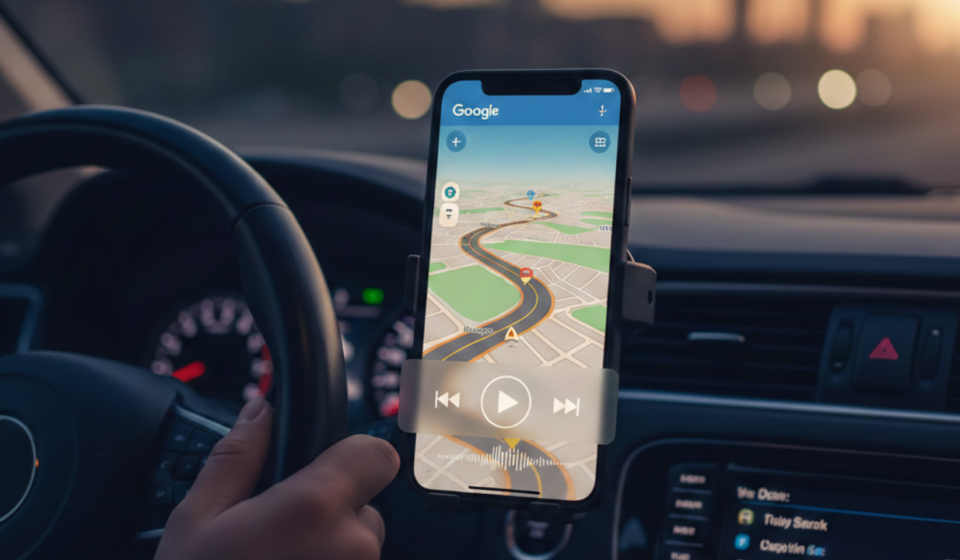
Why Google maps Media controls Removed: A Complete Guide to the Change
Google maps Media controls Removed?
Google maps Media controls Removed – In the world of digital navigation, convenience is king. For years, commuters and road-trippers alike relied on a seamless integration within Google Maps that allowed them to control their music be it Spotify, Apple Music, or YouTube Music, directly from the navigation interface. However, a wave of updates has left many users wondering: where did the Google Maps media controls go?
If you have noticed that your playback buttons have vanished or that the “Assistant Driving Mode” looks radically different, you aren’t alone. This article explores the technical shifts, the reasoning behind Google’s decision, and how you can reclaim a safe, musical driving experience.
The Evolution of Google Maps and In-App Media Playback
To understand why media controls were removed or shifted, we first have to look at how they arrived. Google originally introduced media integration to reduce “app switching.” The logic was simple: if a driver has to leave the navigation screen to skip a song, the risk of an accident increases.
For a long time, users could toggle a setting within Google Maps to show a persistent media bar at the bottom of the screen. This bar provided play/pause and skip functionality without obscuring the map. However, as Google began consolidating its services under the umbrella of Google Assistant, the “classic” way of handling media began to clash with newer, voice-first interfaces.
The Shutdown of Assistant Driving Mode Dashboard
The most significant “removal” that users are currently experiencing is the sunsetting of the Assistant Driving Mode Dashboard. This was a dedicated homescreen for your car that featured large tiles for navigation, calling, and, most importantly, media controls.
In late 2022 and throughout 2024, Google began phasing out this specific view in favor of a more streamlined “Google Maps Navigation” experience. Many users perceived this as the media controls being “removed,” when in reality, they were being relocated or restricted to specific voice-activated triggers.
Why Google Is Changing the Navigation Experience
You might ask, “If it worked perfectly, why change it?” Google’s official stance usually revolves around simplification and safety, but there are several underlying factors:
- Uniformity Across Platforms: Google wants the experience on a smartphone to mirror the experience of Android Auto. By streamlining the mobile interface, they create a cohesive ecosystem.
- Voice-First Interaction: Google is pushing users toward “hands-free” control. By removing physical buttons, they encourage the use of “Hey Google,” which keeps a driver’s eyes on the road.
- App Performance: Maintaining deep integrations with third-party APIs (like Spotify or Tidal) inside the Maps app requires significant resources. Offloading this to the Google Assistant layer simplifies the Maps codebase.
How to Check if Your Media Controls Are Still Available
Before assuming the feature is gone forever, it is worth checking if the setting was simply toggled off during an update. Here is how you can verify your settings in the current version of Google Maps:
- Open Google Maps and tap your profile icon in the top right.
- Go to Settings > Navigation settings.
- Look for Assistant default media provider or Show media playback controls.
If these options are missing or greyed out, it means your specific device or region has been transitioned to the new Assistant-only interface.
The Impact on Driver Safety and User Experience
The removal of tactile or visual media controls has sparked a significant debate in the tech community. Critics argue that voice commands are not always reliable especially in noisy environments or with passengers talking. When a voice command fails, users often resort to manually switching apps, which is exactly the dangerous behavior Google originally tried to prevent.
Furthermore, for users with older vehicles who do not have Android Auto or Apple CarPlay built into their dashboard, the smartphone is the infotainment system. Removing the media dock feels like a step backward in functionality for these millions of drivers.
Alternatives for Music Control While Navigating
If you are frustrated by the missing controls in Google Maps, there are several workarounds to keep your tunes flowing without compromising safety:
1. Utilizing Android Auto for Phone Screens
While the official “Android Auto for Phone Screens” app was technically discontinued, the functionality still exists within the Android system. When you start navigation, look for the “Driving Mode” prompt. This often provides a simplified bar that is more reliable than the standard Maps interface.
2. Third-Party Dashboard Apps
Apps like AutoZen or Car Launcher serve as a replacement for the old Assistant Driving Mode. These apps overlay navigation and media controls into a single, driver-friendly interface, effectively giving you back the features Google removed.
3. Using Floating Media Widgets
Many music streaming apps, like Spotify, offer “overlay” settings. This allows a small, floating play/pause button to sit on top of any app including Google Maps. While it can sometimes block the view of a turn, it provides the “one-tap” control many users miss.
4. Steering Wheel Controls and Bluetooth
If your car is equipped with Bluetooth, your steering wheel’s “Next” and “Previous” buttons should still work regardless of what is showing on your phone screen. This remains the safest way to manage audio.
The Shift Toward Google Assistant Driving Mode
Instead of a dedicated bar, Google now expects the “Assistant” to handle the heavy lifting. When you are in navigation mode, saying “Hey Google, play my driving playlist” or “Hey Google, skip this song” is the intended method of interaction.
While this is technically “media control,” it lacks the visual confirmation that many users find comforting. The transition represents a move away from the smartphone as a “touch device” and toward the smartphone as an “ambient listener.”
Future Outlook: Will the Controls Ever Return?
Based on Google’s history of UI development, it is unlikely that we will see a return to the classic, permanent media bar inside Google Maps. Google is doubling down on Gemini (their new AI) and enhanced voice recognition.
However, user feedback often drives small concessions. If enough users report safety concerns regarding the lack of visual controls, we may see a “Simplified Media Widget” introduced in future builds of the app. For now, the focus remains on keeping the map clear and the hands on the wheel.
Troubleshooting Common Media Integration Issues
If your media controls haven’t been “removed” but are simply failing to work, try these quick fixes:
- Clear Cache: Go to your phone settings, find Google Maps, and clear the cache. Do the same for your music app.
- Battery Optimization: Ensure that your music app is not being “optimized” or put to sleep by your phone’s battery saver, as this can kill the background connection to Maps.
- Re-Link Services: In the Google Home or Google Assistant app, un-link and re-link your music provider (Spotify, YouTube Music, etc.) to refresh the handshake between the apps.
Summary of the Current Situation
The “Google Maps media controls removed” issue is less about a bug and more about a deliberate design philosophy shift. Google is moving away from cluttered interfaces and toward an AI-driven, voice-controlled future. While this might be frustrating for those who prefer physical or visual buttons, understanding the new Assistant-led ecosystem is the best way to adapt.
Navigating the road is hard enough; navigating your phone shouldn’t make it harder. By using voice commands or exploring third-party “Car Mode” apps, you can regain control over your audio and focus on what matters most: the road ahead.
Also Read: HRMS Globex: The Ultimate Guide to Revolutionizing Your Workforce Management



Comments are closed.
[…] Also Read: Why Google maps Media controls Removed: A Complete Guide to the Change […]